Collaborate
Chat with context and share media
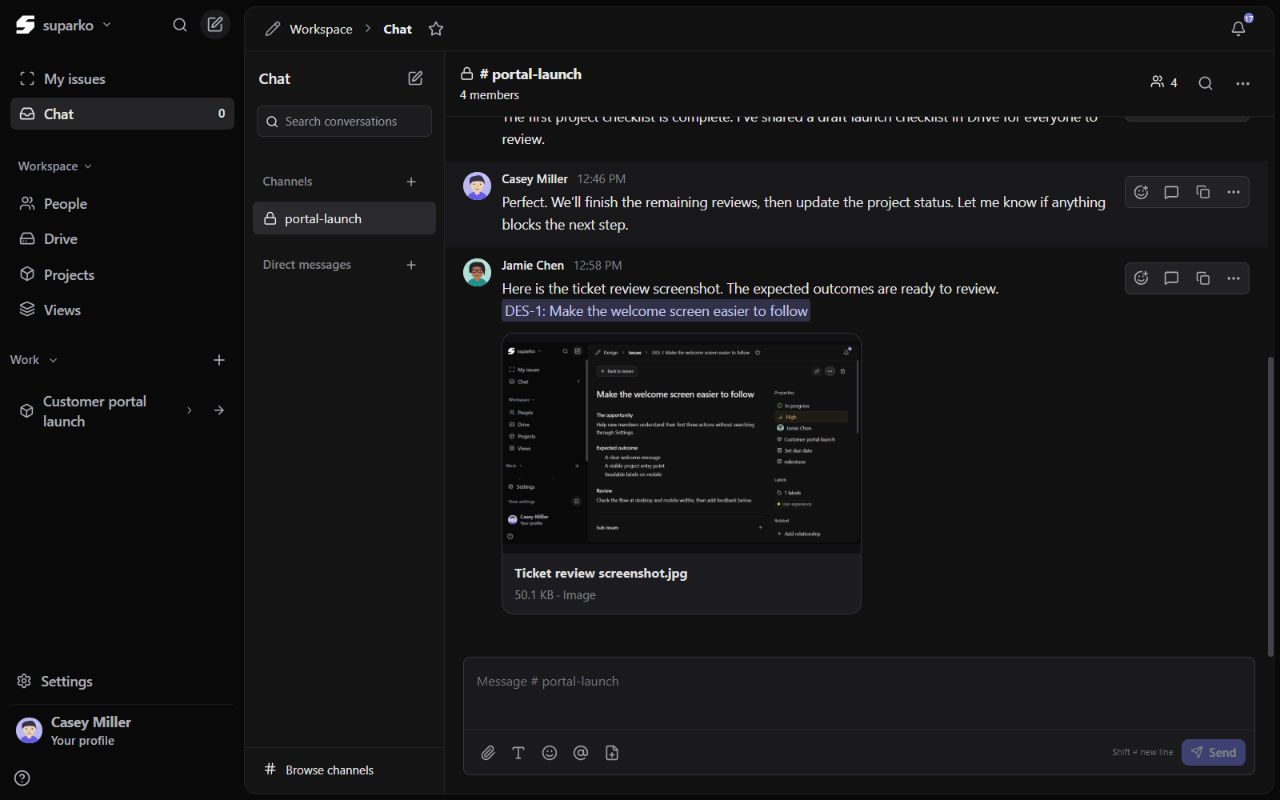
Use Chat for the discussion around work, then reference the relevant ticket so the decision and its context are easy to find. Conversations and referenced tickets each have their own access rules.
Before you begin
- Membership in the conversation and permission to send messages.
- Access to a ticket if you want to reference it.
- A file that is appropriate to share with the conversation’s participants.
What you’ll learn
- Send a message and add an accessible ticket reference.
- Share images and videos with readable previews.
- Understand why a reference may be unavailable.
In this guide
1. Open the right conversation
Choose Chat in the sidebar, then select a direct conversation or room you belong to. Read the conversation title and participants before sending. Use the conversation’s creation controls when you have permission to start a new discussion. A read-only role can read permitted conversations without being able to send or change messages.
On a smaller screen, use the conversation toggle to open the list. Selecting a conversation closes that list so the messages have space. Switching conversation changes where the next message will be sent.
Write the message
Add enough context for the other participants to understand the request. Use the composer’s formatting controls when a list or emphasis makes the message easier to read.
Check the destination
Review the selected room or person, any attachments and ticket references, then use the send action.
Keep replies together
Use the reply or thread action for an existing message when your answer belongs to that discussion. Reactions are useful for a quick acknowledgment.
2. Mention people and reference tickets
Use the composer’s member picker for a person mention and its issue picker for a ticket reference. Search the issue picker by an identifier or useful words, then select the accessible match. Read the ticket before using it as the basis for a decision.
A mention calls attention to a message; it does not give someone project access. A ticket reference remains subject to the reader’s current permissions. Where access is missing or has been removed, the reference can appear as Ticket not available instead of revealing the restricted ticket.
- If no available tickets match your search, confirm the project and your access with its manager.
- Do not paste someone else’s private ticket details into a wider conversation.
- A copied Suparko ticket link cannot bypass ticket permissions.
- If access changed while you were drafting, remove an unavailable reference or refresh before sending.
3. Attach a picture, video or document
Use the attachment action in the composer to select files. Images and supported videos have media previews so the conversation remains easy to follow. Other files show a file card with the name and readable size, and can be opened or downloaded when your access allows it.
Choose and inspect
Select the file, review its name and preview, and remove it from the draft if it is the wrong version.
Wait for upload
Let the upload finish. If an upload fails, read the error and retry the file rather than assuming that a sent message contains it.
Add context
Explain what the image or clip shows. A sentence such as The save button overlaps the footer is more useful than an attachment by itself.
4. Move the outcome back to the ticket
After a discussion reaches a decision, add the result to the ticket’s comments or description if you can edit it. That gives the assignee a durable place to find the decision and keeps the status connected to actual progress.
Use message actions to correct your own message where permitted, or find earlier context with conversation search. Notifications can help you return to replies and mentions.