Account & access
Connect ChatGPT or an MCP client to Suparko tickets
Suparko’s MCP connection gives a supported AI client tools for the tickets you are allowed to access. Select the workspace, projects and linked teams for each new connection. Your current permissions still apply. It does not give an AI client general access to your chat, Drive or account administration.
Before you begin
- A remote MCP client supported by your account and organization policy.
- Your own active Suparko account and access to a ticket you can use for a read test.
- Workspace management access only if you need to create a workspace API key.
- A test ticket for a write test; avoid changing live work just to check a connection.
What you’ll learn
- Choose the correct OAuth or bearer-key setup.
- Confirm which workspace and tickets the client can access.
- Review a draft before committing a ticket change.
- Diagnose connection errors and remove unused access.
In this guide
1. Understand what the connection can do
MCP stands for Model Context Protocol: a way for a compatible AI client to call tools in another service. Suparko provides a remote, ticket-only MCP connection. Your AI client supplies the conversation and model; this connection is not a built-in Suparko chatbot.
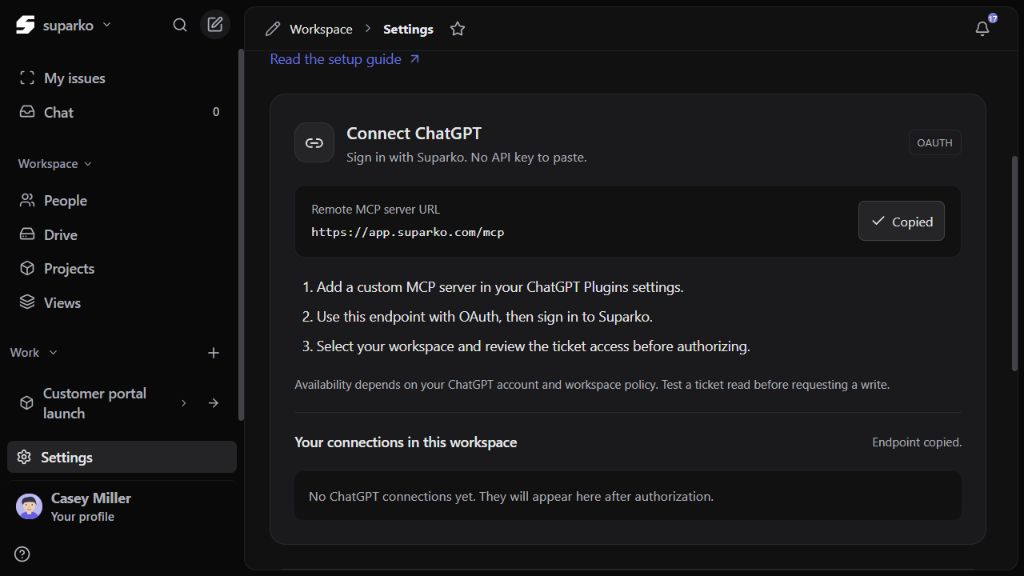
Use https://app.suparko.com/mcp as the server URL. Suparko exposes tools for searching and reading accessible issues, reading their comments, resolving valid ticket options, creating issues, updating supported fields, adding comments, moving tickets to recoverable Trash and restoring them. The connection's granted scopes and your current membership and project/team permissions determine which operations succeed.
A connection does not grant new project access. New workspace API keys require selected projects and linked teams, and include ticket reads, creation, updates, comments, Trash and Restore; existing keys retain their original permissions. Only authorize write tools if your intended workflow needs them.
| Operation | Available ticket context |
|---|---|
| Read and search | Issues and comments available to the connected account |
| Resolve options | Selected accessible projects and linked teams, valid statuses, labels and assignees; do not guess IDs |
| Create | A ticket in a selected project and writable linked team with valid options |
| Update | Title, description, priority, assignee, status, due date, labels or project with the current revision |
| Comment | A comment on a writable, accessible issue |
| Outside the scope | Chat messages, Drive files, billing and account administration |
https://app.suparko.com/mcpCopy this public endpoint into a compatible client's remote MCP setup. Opening the URL as a normal web page is not a connection test; MCP clients send protocol requests to it.
OAuth or a supported bearer-key connection
Your account · chosen workspace- Active membership
- Granted ticket scopes
- Project and team access
Search, read, create, update or comment
Allowed tools · valid fieldsValidated change. Ticket stays unchanged.
Confirm the result in the actual ticket.
2. Choose the connection method
The endpoint is the same for both methods. The authentication flow is different. A workspace API key is not a substitute for OAuth in a client that only offers an OAuth setup.
| Method | When to use it | What you provide |
|---|---|---|
| OAuth | A compatible client such as ChatGPT that opens Suparko authorization | Server URL, your own Suparko sign-in, selected workspace and consent |
| Workspace API key | A client that supports a secret Authorization bearer header | Server URL plus a key created for the intended workspace |
| No authentication | Not supported for private ticket access | Public documentation can be read without exposing workspace data |
3. Connect ChatGPT with OAuth
Use ChatGPT on the web and its custom MCP server setup when your account and workspace policy permit it. OpenAI's current guide starts in Plugins: use the + action, then Add custom MCP server. Menus and organization restrictions can change; follow the official setup guide linked below.
Name the connection Suparko, enter the remote MCP URL and choose OAuth. Review the client's risk notice, create the plugin and install it. Complete Suparko authorization when prompted. The endpoint being live does not mean Suparko is already listed in a public directory.
Add the remote server
Enter the name Suparko and the server URL https://app.suparko.com/mcp, then select OAuth. ChatGPT uses OAuth for this connection; do not paste a workspace API key into your chat or its setup.
Sign in to Suparko
Complete Suparko sign-in in the authorization flow using your own account.
Review the request
Select the workspace, then choose the projects and linked teams you intend to connect. Read the ticket permissions being requested and authorize only the access you intend to grant. An existing connection keeps its old permissions; reconnect to choose a narrower selection or enable Trash and Restore.
Select Suparko in the chat
After installing and authorizing the connection, select it with the client's @ picker when asking a question that needs current ticket data.
Try a read first
Ask for a ticket you can already open in Suparko. Verify the returned identifier, description and workspace context against that issue before requesting a change.
4. Use a workspace key with a compatible client
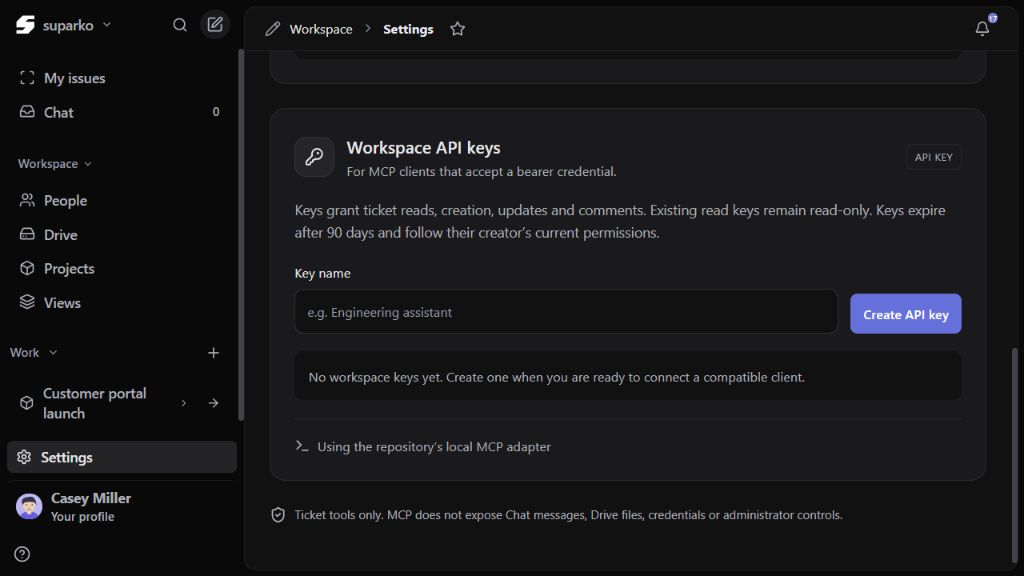
Some clients support an Authorization: Bearer header instead of OAuth. In the selected workspace’s Settings, open API & MCP to reach Private API & MCP. If your role can create keys, select the projects and linked teams it needs, name the key clearly and select Create API key. Copy the key when it is shown; it is only displayed once.
Configure the compatible client to use that key as its bearer credential for the MCP endpoint. Keep it in the client’s secret configuration, not in a ticket, chat message or public repository. Keys are workspace specific and expire after 90 days in the current configuration.
Select the workspace first
Open Settings → API & MCP in the workspace you intend to connect. Select projects and their linked teams, then give the key a recognizable integration name. A selected project needs at least one selected team.
Store the key privately
Copy the one-time key into your client's secret bearer-token setting. Send it as an Authorization: Bearer header only if that client supports this method.
Test one accessible ticket
Search or read a known issue. A valid key does not make every private project available to its creator.
- Creating an API key in Suparko is different from authorizing ChatGPT with OAuth.
- The key follows its creator’s current workspace membership and private-resource permissions.
- Use a separate named credential for a distinct integration so it can be revoked independently.
- If you cannot create keys, ask a workspace administrator about the supported connection method.
5. Test reads, then review a draft write
Suparko’s write tools support DRAFT and DIRECT modes. DRAFT validates a proposal without committing the change. DIRECT commits the requested change when the account, scope and ticket permissions allow it. Make the desired ticket, field and value explicit.
When asking an AI client to update a ticket, have it read the latest issue first. Updates use the current revision to avoid overwriting work based on an older version. If the ticket changed, read it again and review the intended change before retrying.
- A draft is a proposal; it is not a saved pending ticket or comment.
- Request DIRECT only after reviewing the exact ticket, field and proposed value.
- Your client handles tool-call identifiers, current revisions and retry keys. If it reports a conflict, do not repeatedly submit an old update.
- After a commit, open the actual ticket and confirm the intended result. Do not rely only on a conversational success message.
| Mode or result | What it means |
|---|---|
| DRAFT | Validate a proposal; the ticket change is not committed |
| DIRECT | Commit an explicit, authorized ticket change |
| committed: false | A draft receipt is not proof that the ticket changed |
| committed: true | A committed receipt should be checked against the updated ticket |
| Revision conflict | Read the latest ticket and review the change again before retrying |
Use Suparko to find an accessible ticket about the mobile save button. Show its identifier, current status and relevant description. Do not change anything.Replace the topic with a known ticket in your workspace. Review the selected record before asking for a DRAFT comment or update.
6. Resolve common MCP connection problems
Start with the exact step that failed: creating the custom connection, authorization, tool discovery, reading a ticket or making a change. These are different checks. Keep passwords, bearer keys and authorization URLs out of your support request.
| What you see | What to check next |
|---|---|
| No custom-app create action | Check the client's plan and organization policy; ask its administrator about developer-mode access |
| Tool scan cannot connect | Confirm the HTTPS endpoint, select OAuth or supported bearer authentication, and complete sign-in/consent |
| Authorization expired or revoked | Reconnect with your own account or replace the expired workspace key |
| A ticket is not available | Check the selected workspace, current project/team access and whether the ticket still exists |
| Reads work, writes are denied | Check granted write scopes and your edit role; read-only grants cannot commit changes |
| An update conflicts | Read the latest revision, review the requested fields, then submit a fresh reviewed change |
| The assistant says it saved a draft | Check the returned mode and committed value; DRAFT does not modify the ticket |
7. Disconnect when access is no longer needed
When your role exposes Private API & MCP in workspace settings, use Your connections in this workspace to review OAuth connections and disconnect an unused connection. Use Revoke for a workspace API key you no longer need. Each action invalidates that credential for future use. If the settings area is restricted, disconnect through your client and ask your workspace administrator about removing the Suparko connection.
If a client reports an authorization error, check the correct workspace, connection expiry and your current access before reconnecting. Never send the private key to someone so they can diagnose it.