Collaborate
Keep files organized and share carefully
Drive gives your files a home beyond a single message. Use folders to keep related work together, preview supported files, and grant the right people permission to view or edit.
Before you begin
- A workspace with Drive access.
- An editable destination folder for new uploads.
- The names of the people who should see the files.
What you’ll learn
- Choose a suitable file location.
- Upload files and read their upload status.
- Share files without accidentally broadening the audience.
In this guide
1. Choose Your Drive or Shared Drive
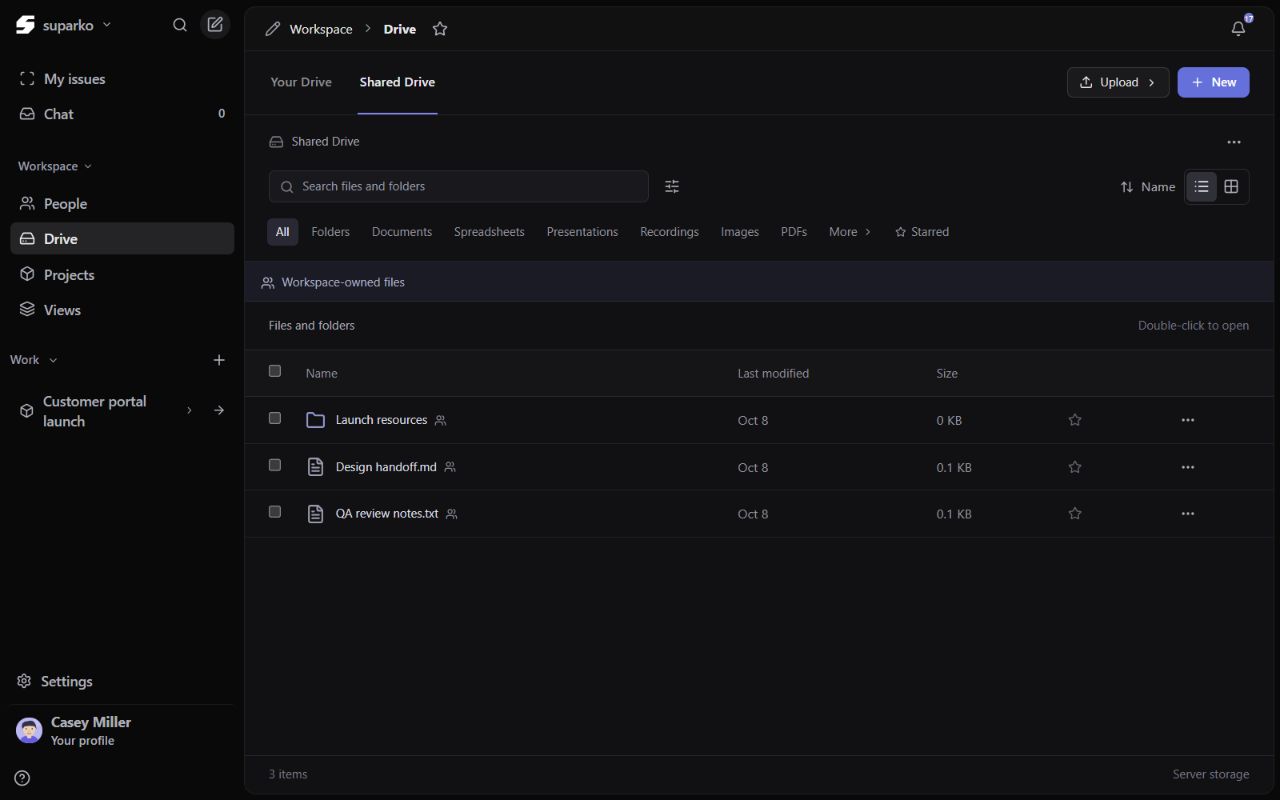
Open Drive and select Your Drive for your personal file area or Shared Drive for the workspace’s shared area. Personal files can be shared with specific members. Shared Drive has inherited workspace access, so it is intended for material suitable for that broader audience.
Use the folder path at the top of the file area to understand where you are. A read-only folder can be viewed but is not a valid destination for an upload or edit.
| Location or role | Meaning |
|---|---|
| Your Drive | Your personal file area; individual files can be shared |
| Shared Drive | Workspace-shared area with inherited access |
| Viewer | Can view permitted files, without editing their organization |
| Editor | Can perform permitted file and folder changes |
2. Upload and organize files
Open the intended folder before uploading. Use Upload to select files or a supported folder upload, or drag files into the file area. Create a new folder when a named collection will help other people find the work.
Select the destination
Confirm both the drive area and folder. A file in Shared Drive has a different audience from a personal file.
Watch the upload queue
The queue shows progress and the outcome of each upload. Wait for completion; retry a failed upload after reading the error.
Resolve name conflicts
If a conflict dialog appears, review its offered action and the existing file before confirming. Choose a clear filename when the two files represent different versions.
Add useful details
Use the file’s details and editing actions to add a description or tags where permitted. Consistent names and folders make search more useful.
3. Preview, inspect and find a file
Select a file to inspect its details, or use Preview to open a larger view. Supported images, video, audio and document formats can have inline previews. When the file format cannot be displayed, use Download to open it in a suitable application.
Use list or grid view according to the work: list is useful for scanning names and sizes, while grid can help with visual files. Search, filters and sorting narrow the files in the current view. The Details, Activity and Sharing areas explain the file and its access.
5. Use Trash to recover mistakes
Use Move to Trash for a file you are permitted to remove. The Trash view helps you find removed items and restore them where that action is available. Keep an eye on the destination and access when restoring or moving a file.
A file attached to a ticket or chat also depends on access to that source. Losing permission to the source can make its attachment unavailable even if you previously saw it.